Converting SVG to PDC
Pebble Draw Commands (PDC) は、実行時に変換および操作できるベクター画像とアイコンを作成する強力な方法です。これらは、APNG やビットマップ シーケンスの低コストな代替手段として使用できます。現在、PDC ファイルを作成する唯一の簡単な方法は、svg2pdc.py ツールを使用することです。ただし、Vector Animations で説明されているように、入力 SVG ファイルの性質にはいくつかの制限があります:
svg2pdcツールは現在、次の要素のみを使用する SVG ファイルをサポートしています:g、layer、path、rect、polyline、polygon、line、circle。
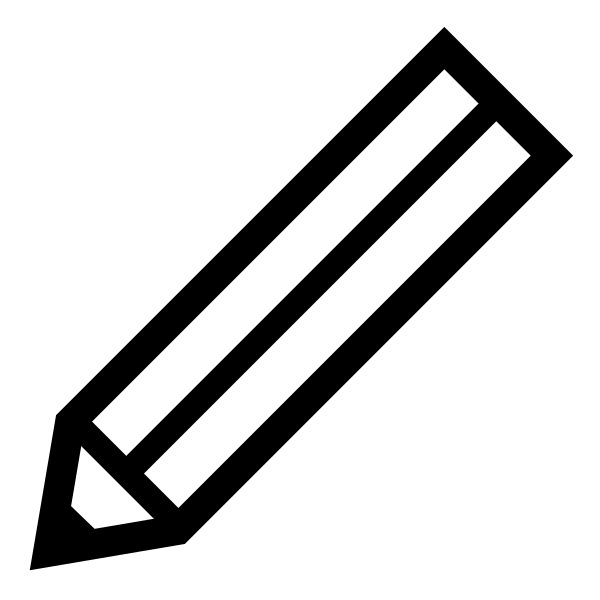
幸いなことに、一般的なグラフィックス パッケージで SVG ファイルを作成する際に、これらの制限を回避し、出力ファイルが svg2pdc.py と互換性があることを保証するための手順を実行できます。このガイドでは、サンプル SVG - この鉛筆アイコンを使用して、互換性のある PDC ファイルを作成します。

Inkscape の使用
- まず、Inkscape で SVG を開きます:
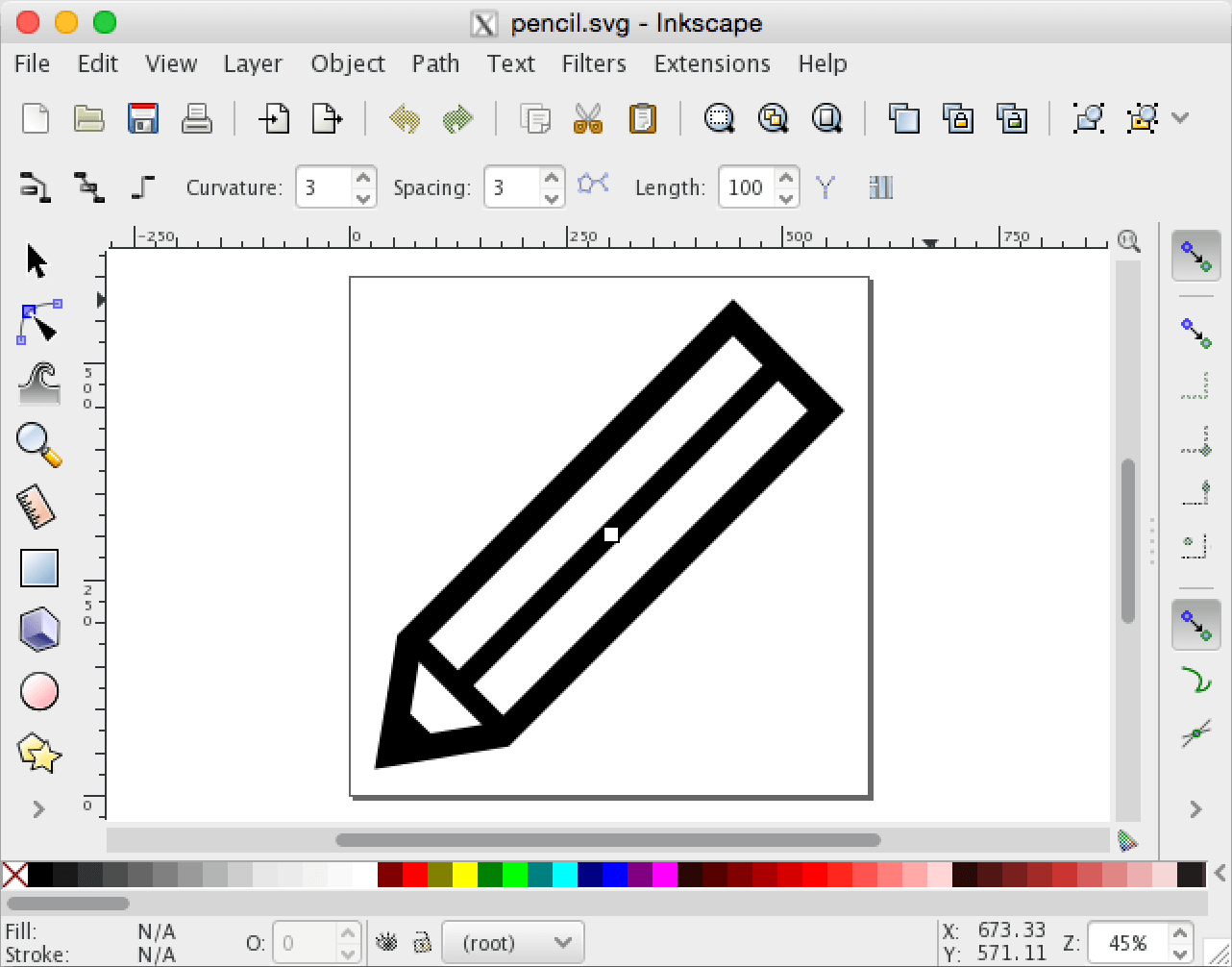
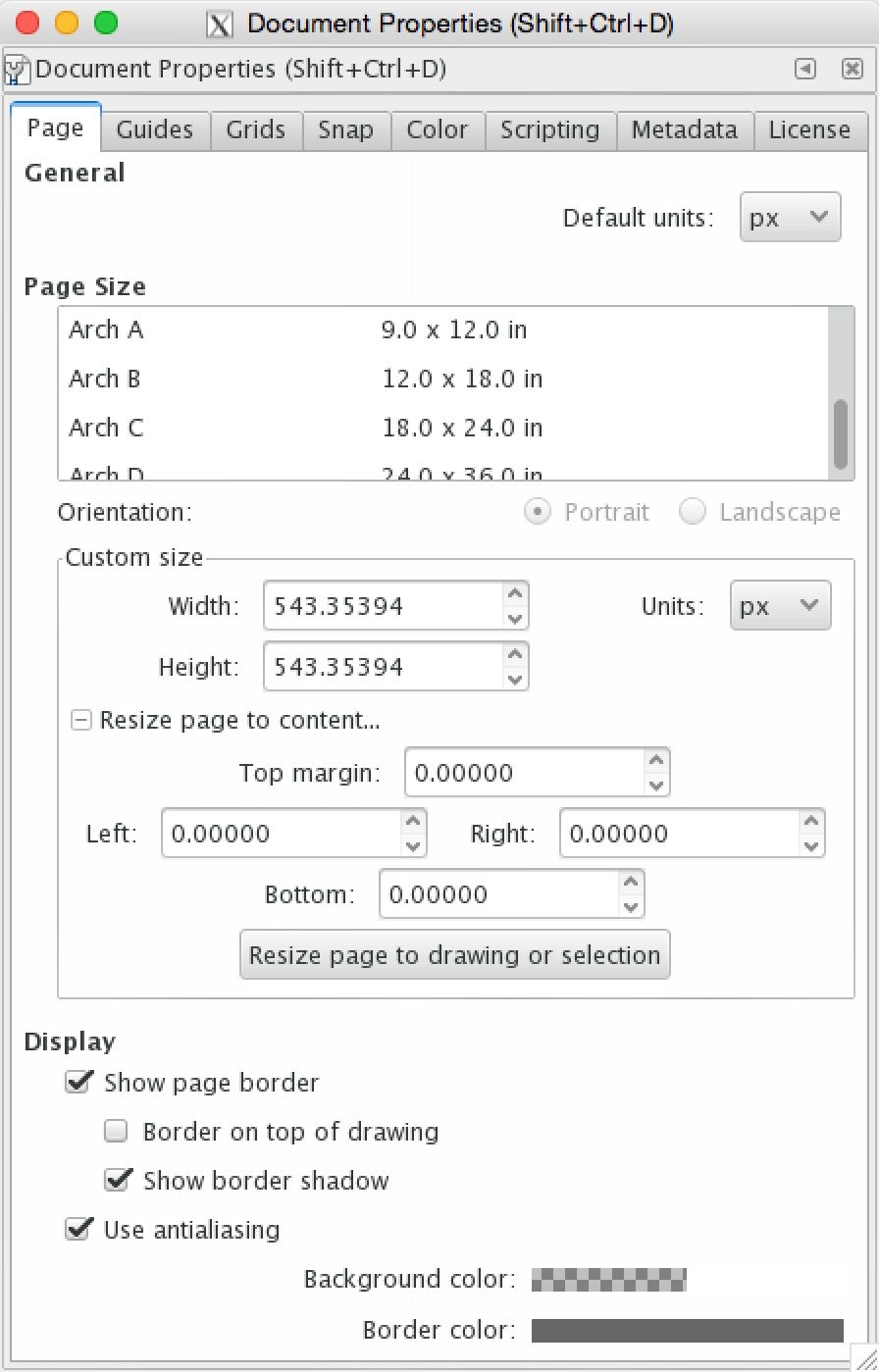
- File、Document Properties、Page、Resize Page to Drawing でビューポートのサイズを変更します:
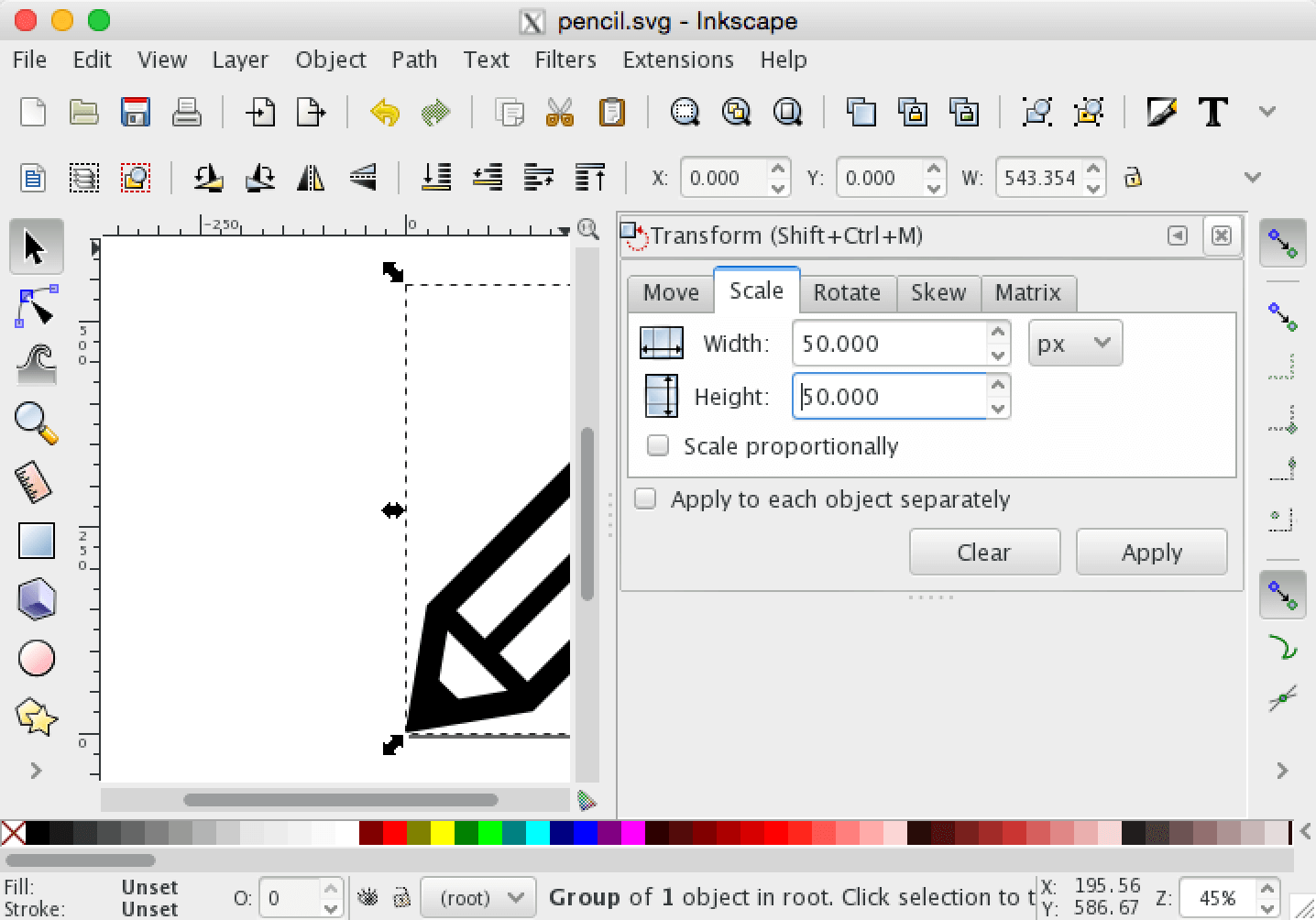
- レイヤーを選択してから、Object、Transform を使用して、Pebble に適合するように画像のサイズを変更します(この例では 50 x 50 ピクセル):
画像のサイズが変更されたら、File、Document Properties、Page、Resize Page to Drawing で再度ビューポートを縮小します:
Edit、Select All、次に Object、Ungroup でグループが残らなくなるまでグループ化を削除します:
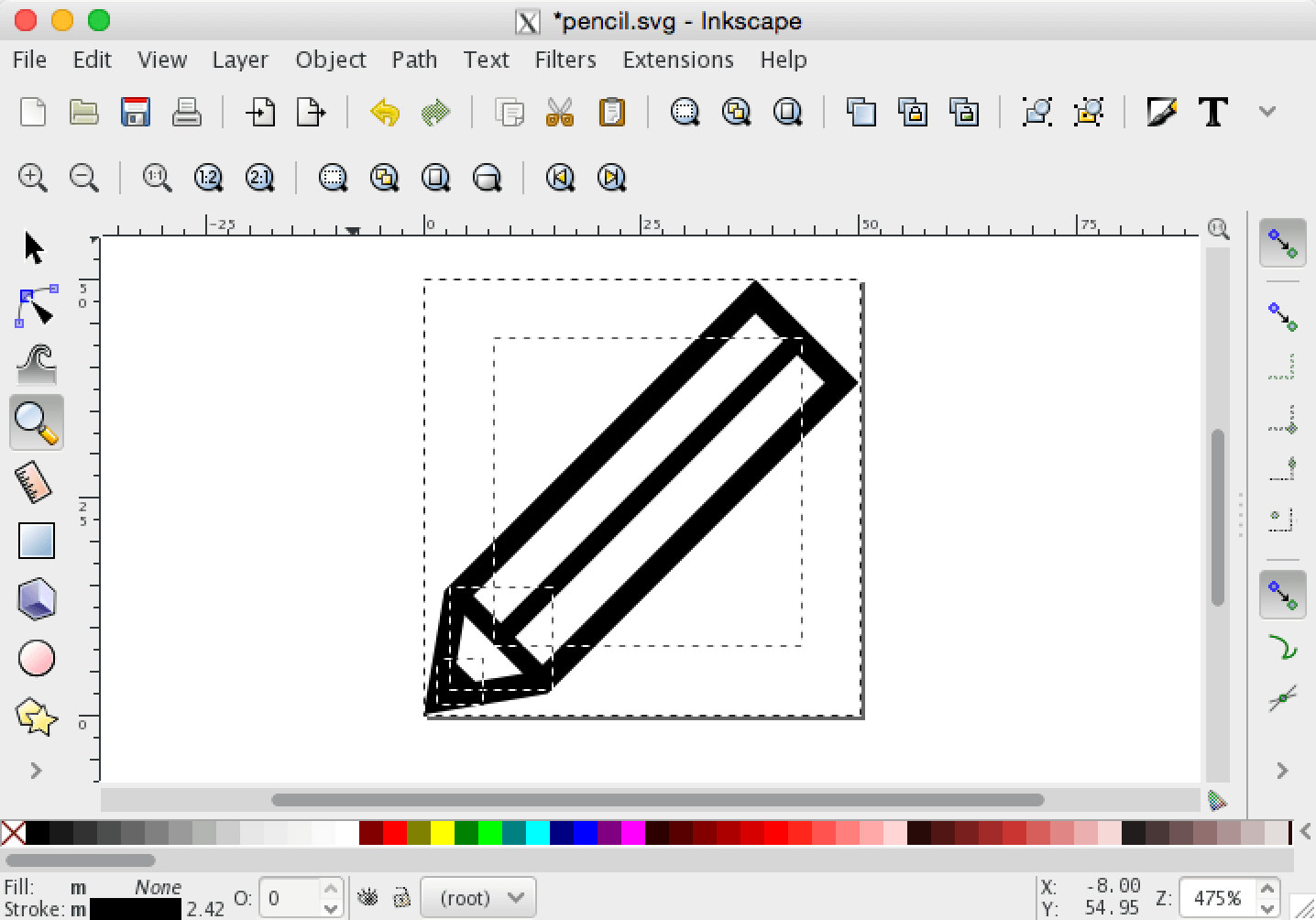
- Object、Transform で相対移動を無効にします。Apply を押します:
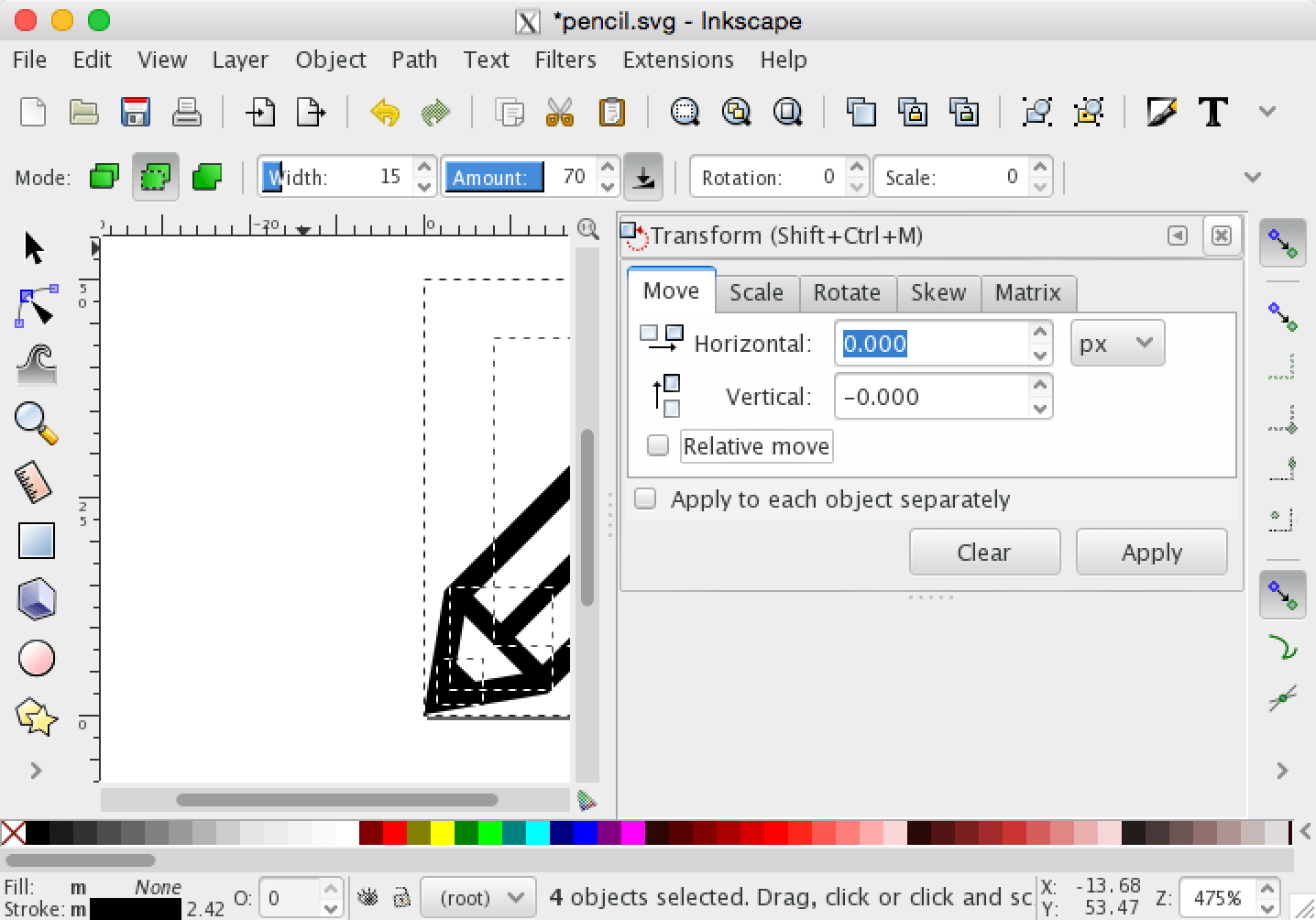
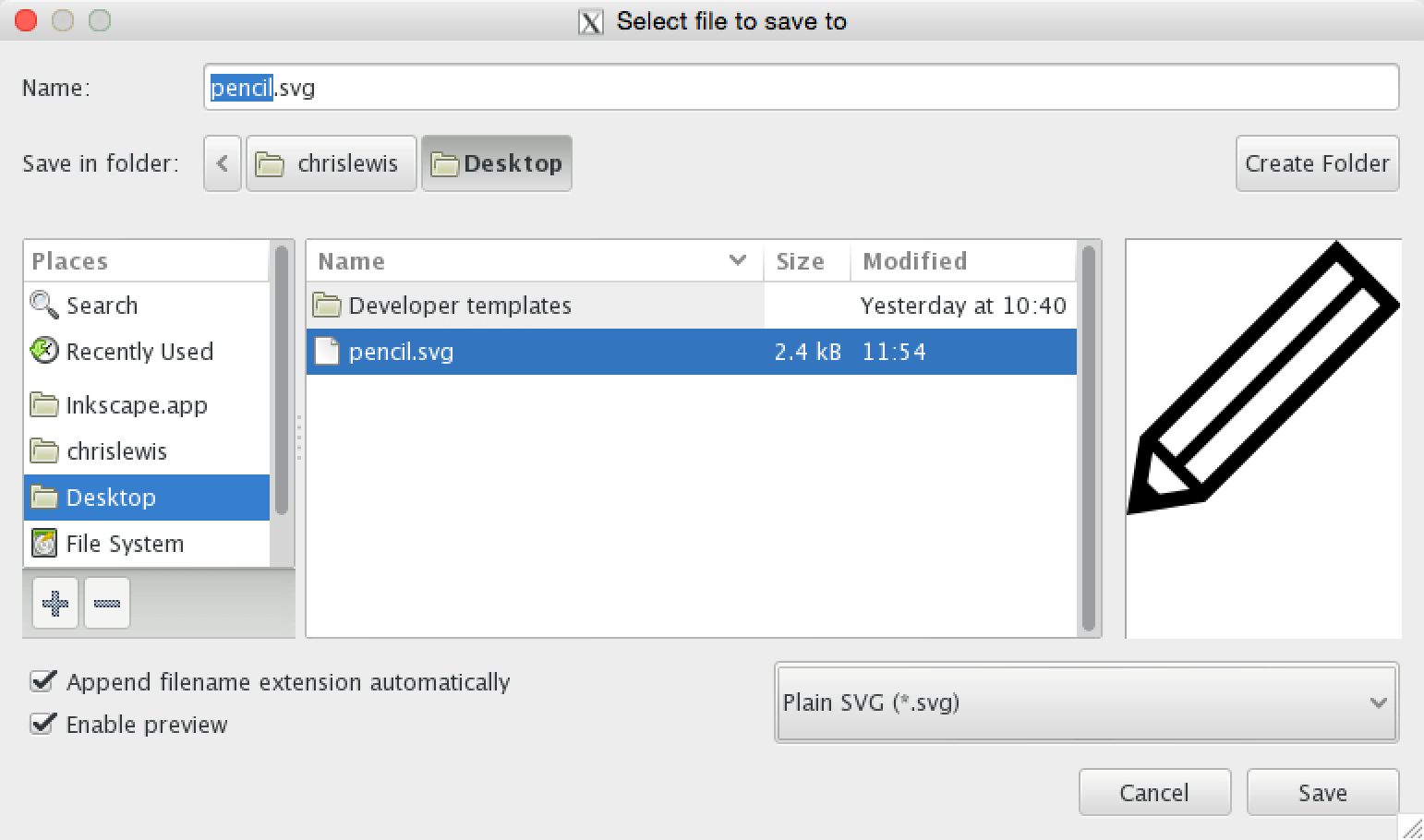
- 最後に、画像を「Plain SVG」として保存します:
Illustrator の使用
- まず、Illustrator で SVG を開きます:
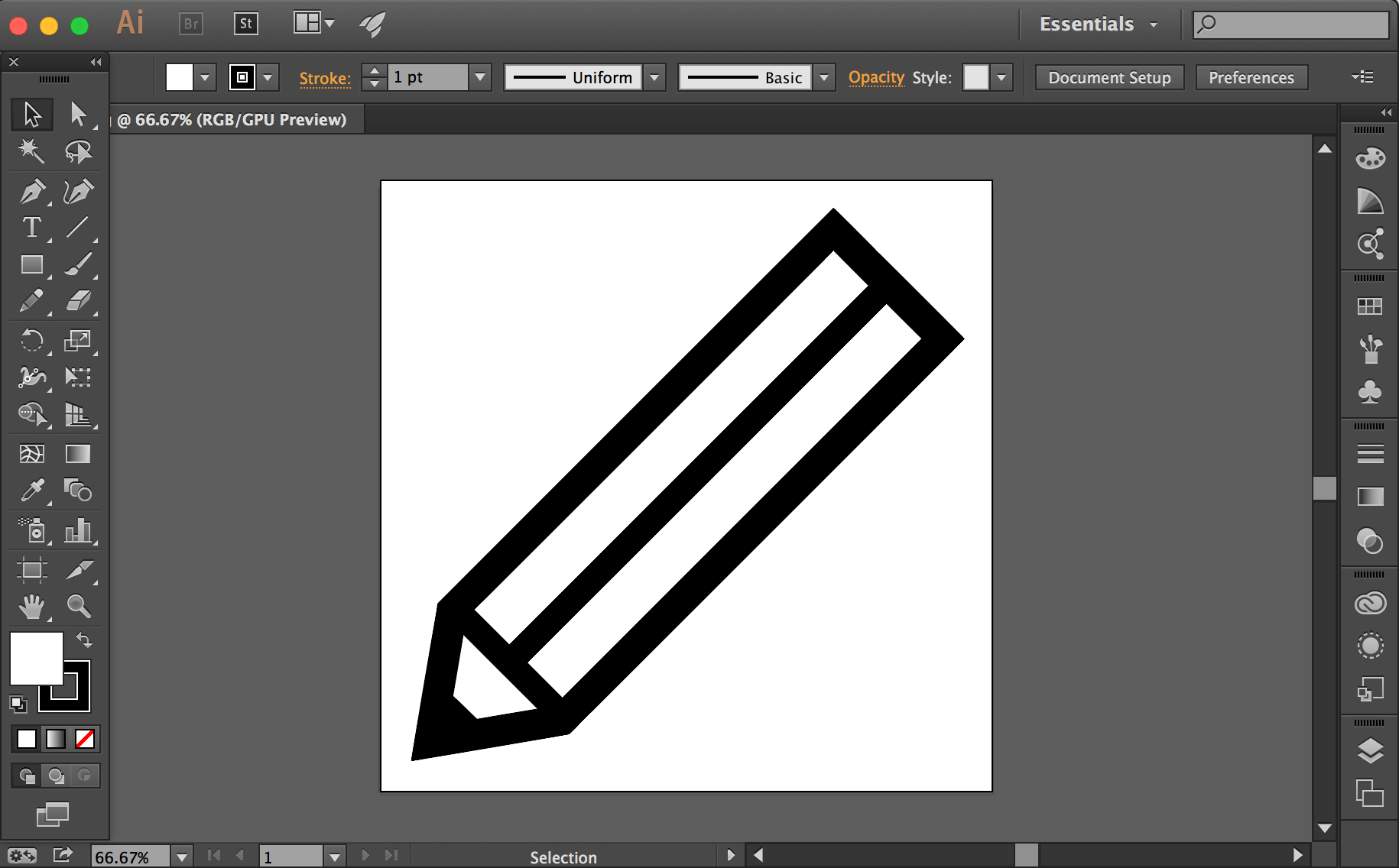
- Transform パネルの「W」フィールドと「H」フィールドに目的の値を入力して、Pebble に適合するように画像のサイズを変更します(この例では 50 x 50 ピクセル):
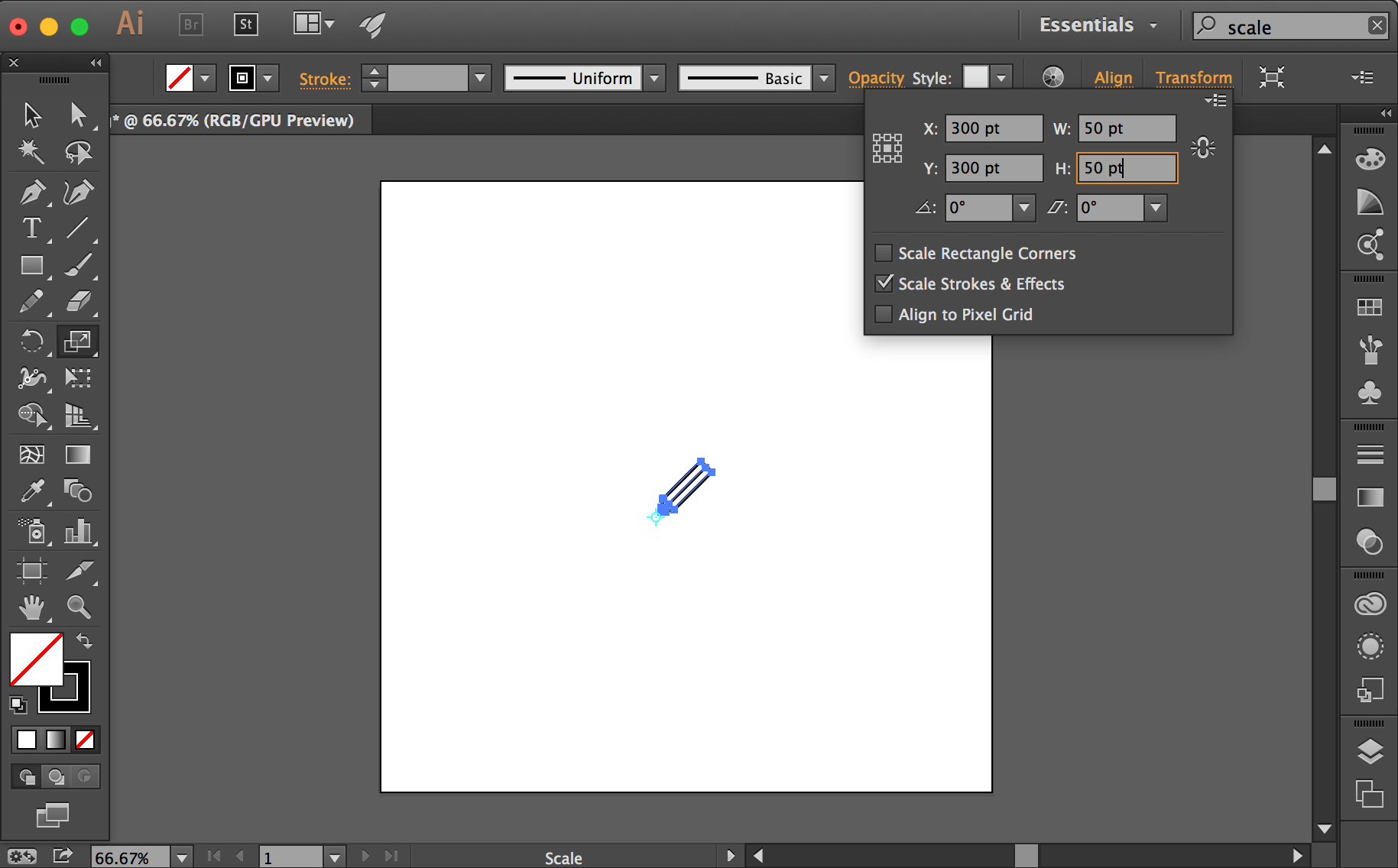
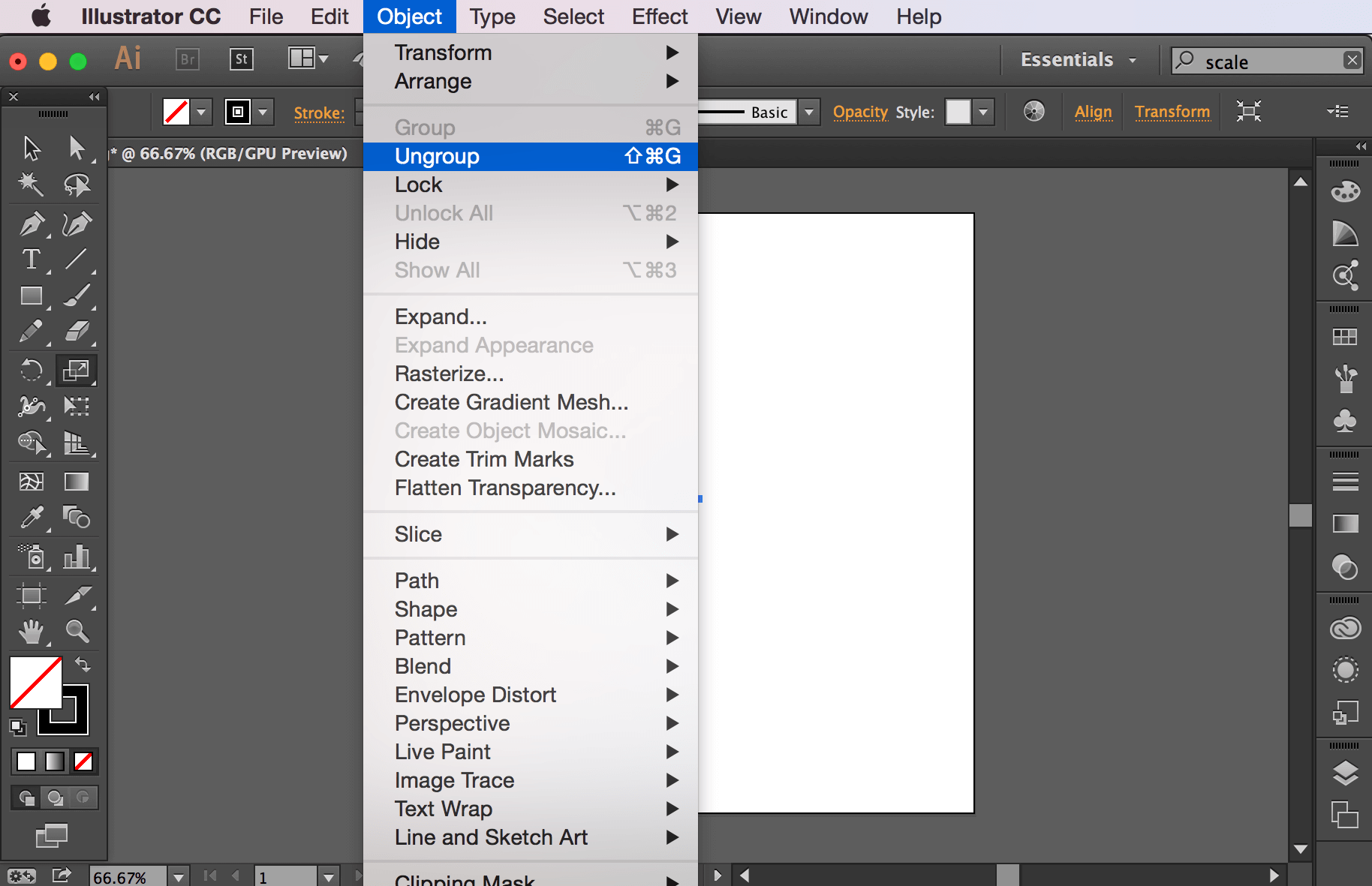
- Select、All、続いて Object、Ungroup でグループが残らなくなるまですべての項目のグループ化を解除します:
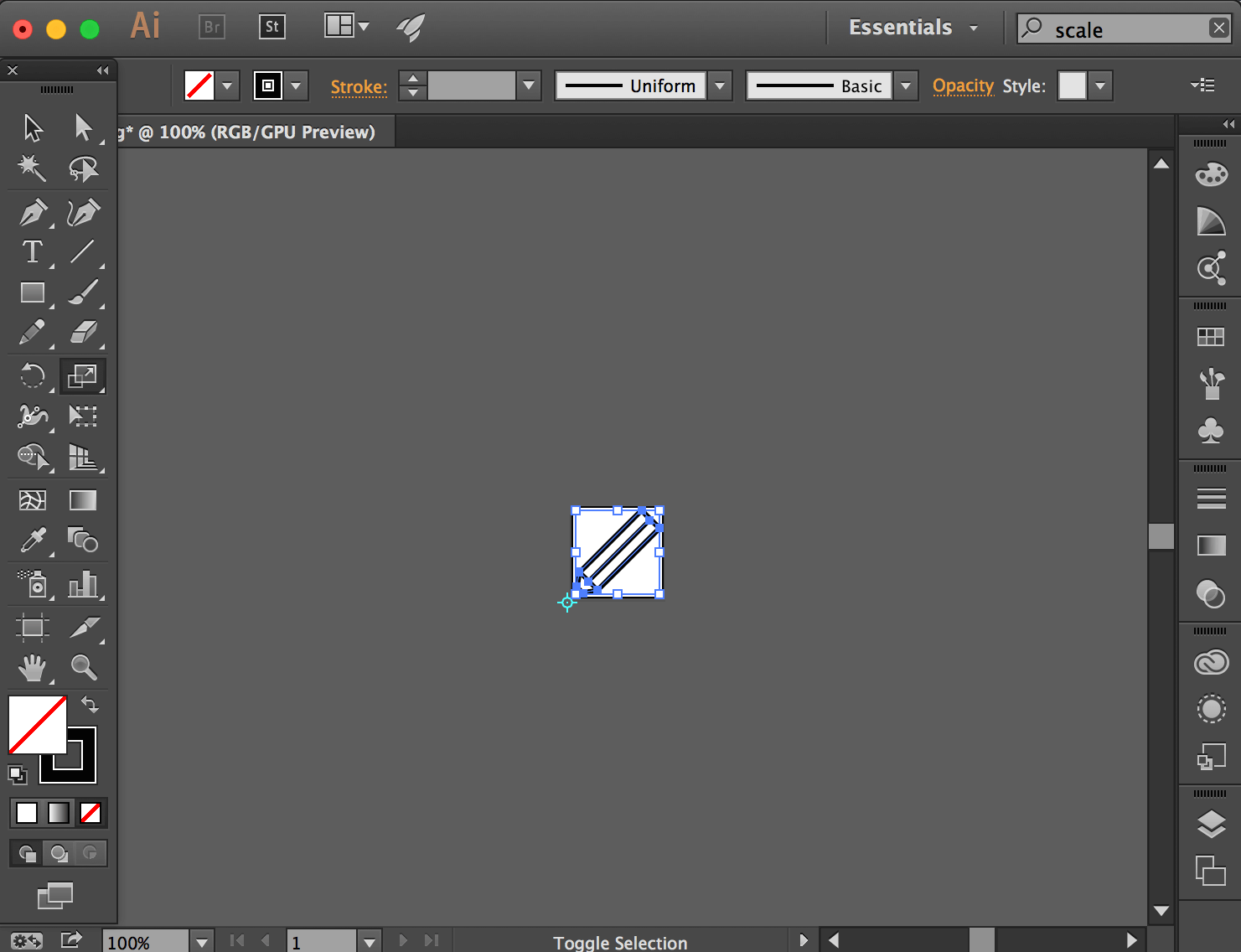
- Object、Artboards、Fit to Selected Art で画像の境界を縮小します:
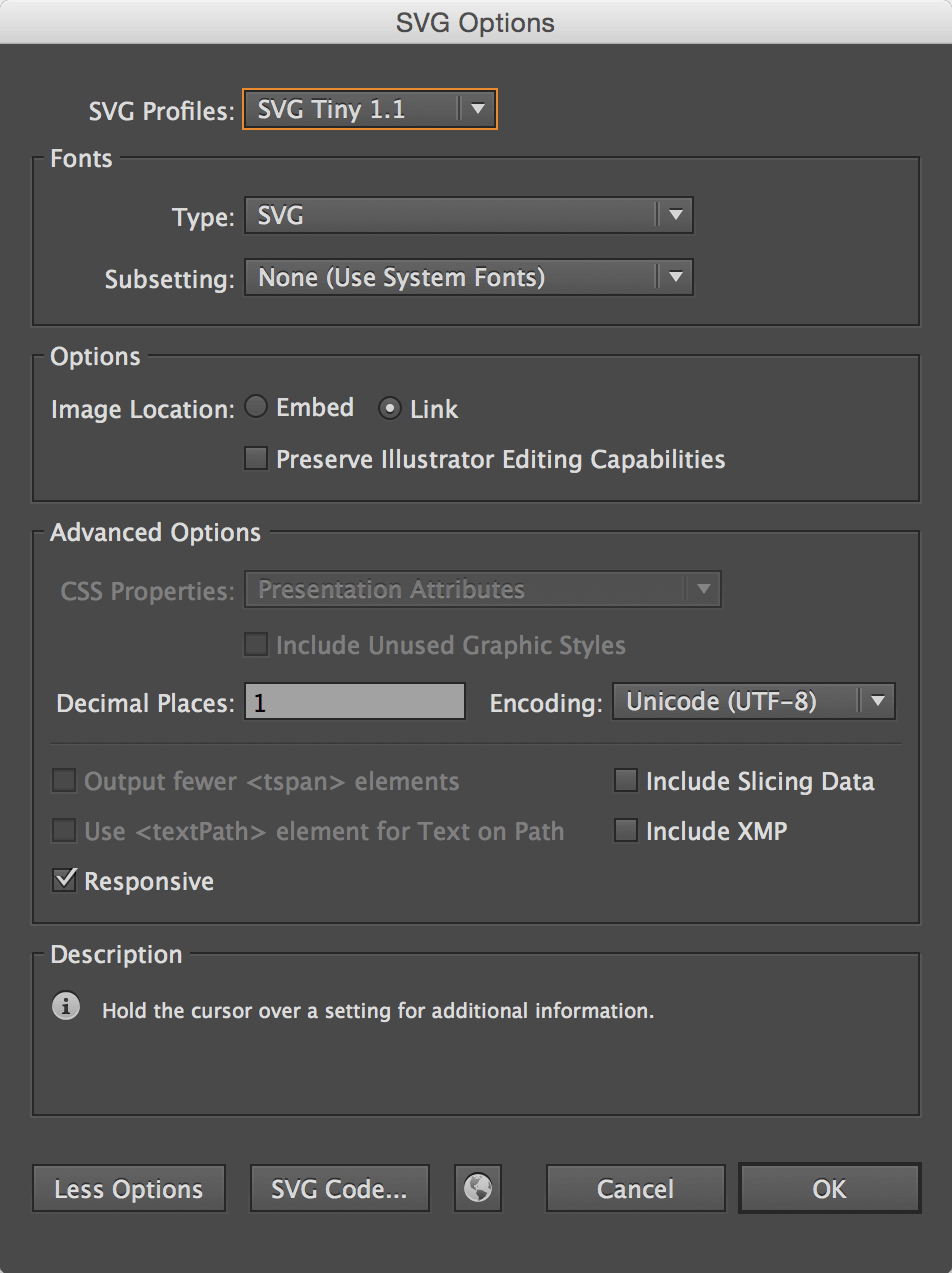
- File、Save As を使用して、SVG Tiny 1.1 プロファイルと 1 桁の小数点で SVG を保存します:
PDC ファイルの使用
互換性のある SVG ファイルが作成されたら、svg2pdc.py を使用して PDC リソースに変換します。これには、正しい Pebble バイナリ形式で画像を描画するために必要なすべてのベクター情報が含まれます。コマンドを以下に示します。Inkscape 出力 SVG を例として使用しています:
$ python svg2pdc.py pencil-inkscape.svg # Use python 2.x!
座標値の精度値がサポートされていない場合、警告が出力され、代わりに最も近い互換性のある値が使用されます:
Invalid point: (9.4, 44.5). Closest supported coordinate: (9.5, 44.5)
Pebble プロジェクトで PDC ファイルを使用するには、Drawing a PDC Image をお読みください。結果は Pebble 上でほぼ同一に見えるはずです:
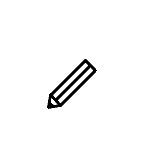
出力例
参考までに、互換性のある出力ファイルを以下に示します:

